Mobile security training: What the Finder Saw
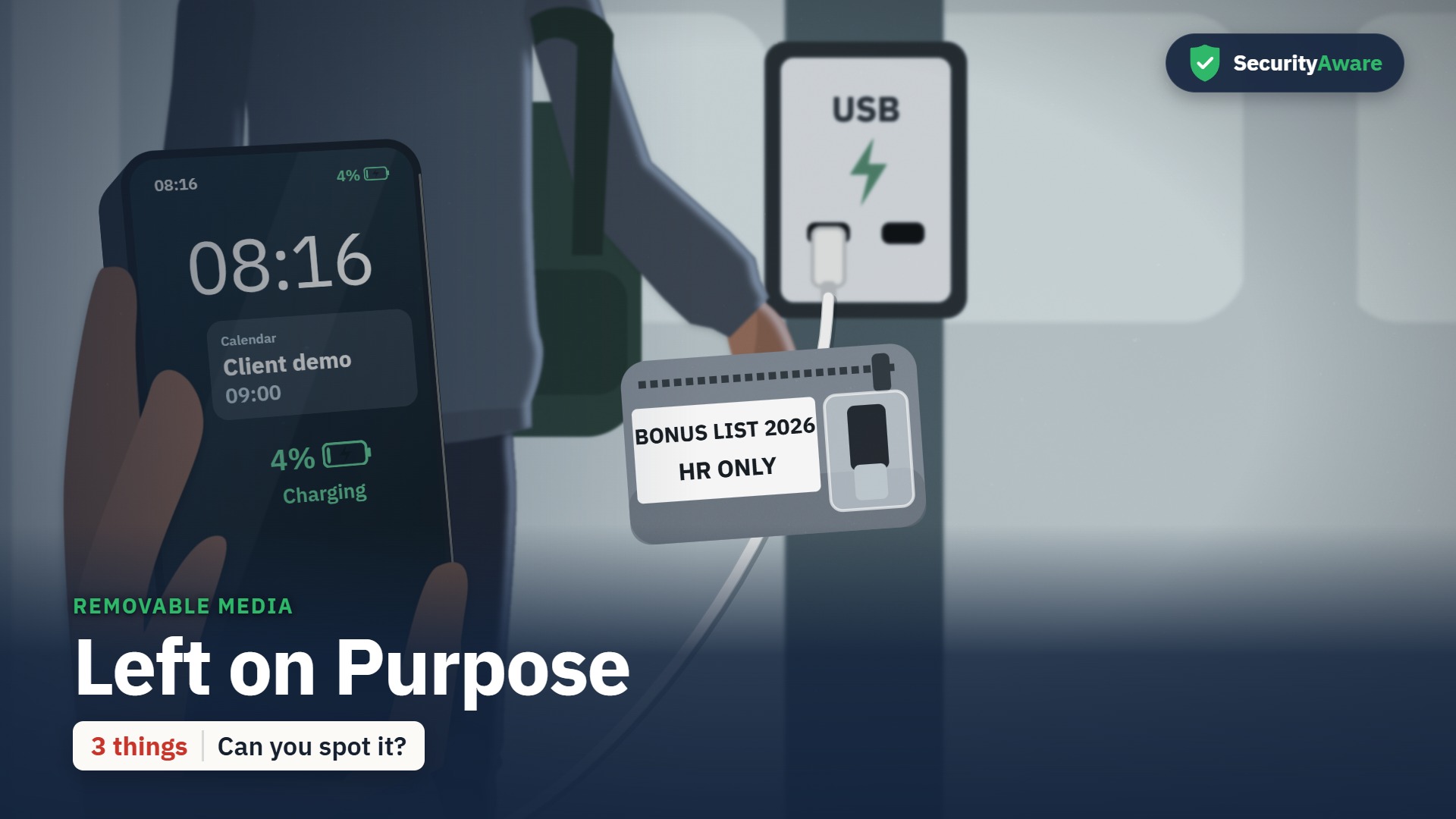
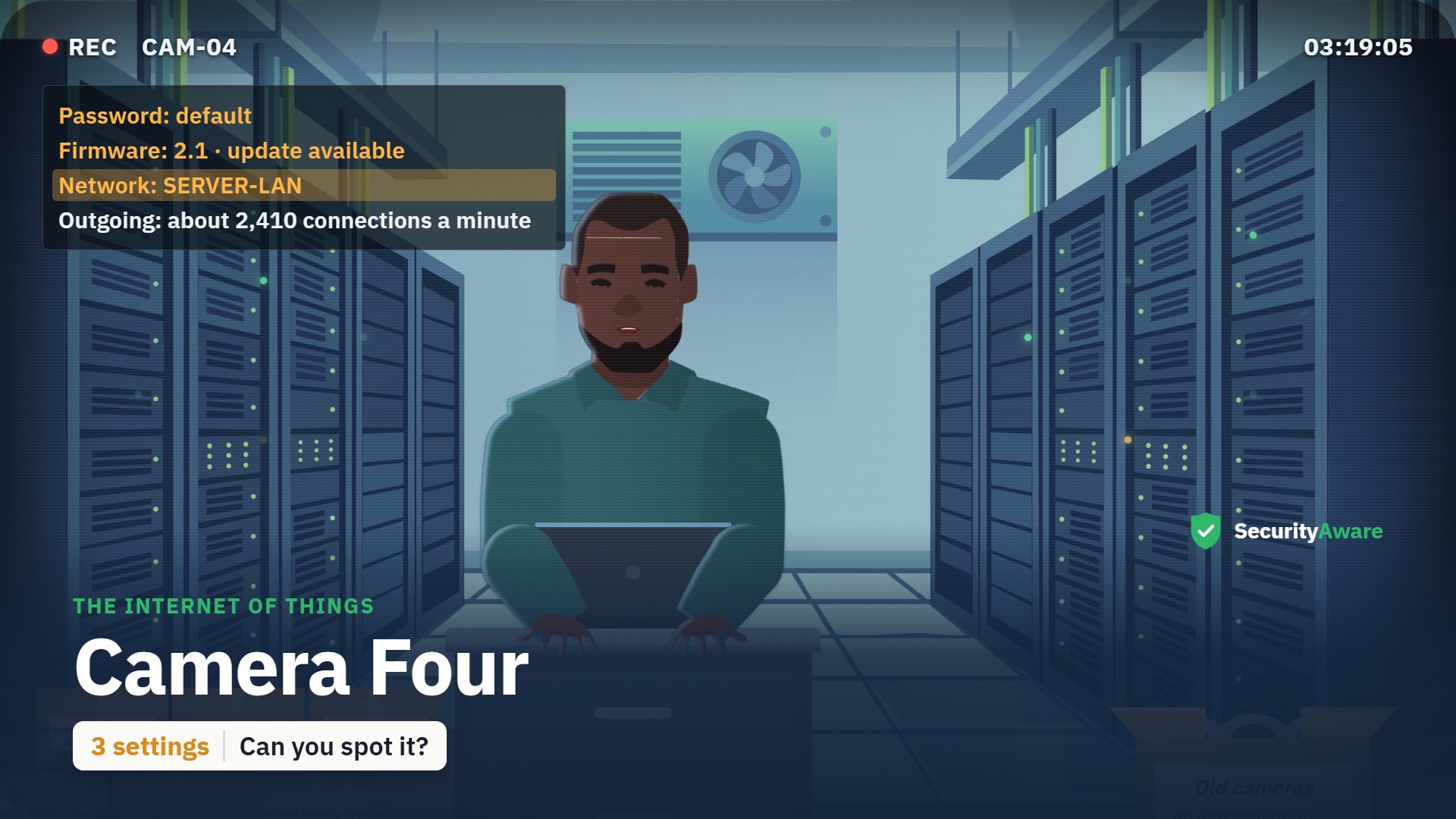
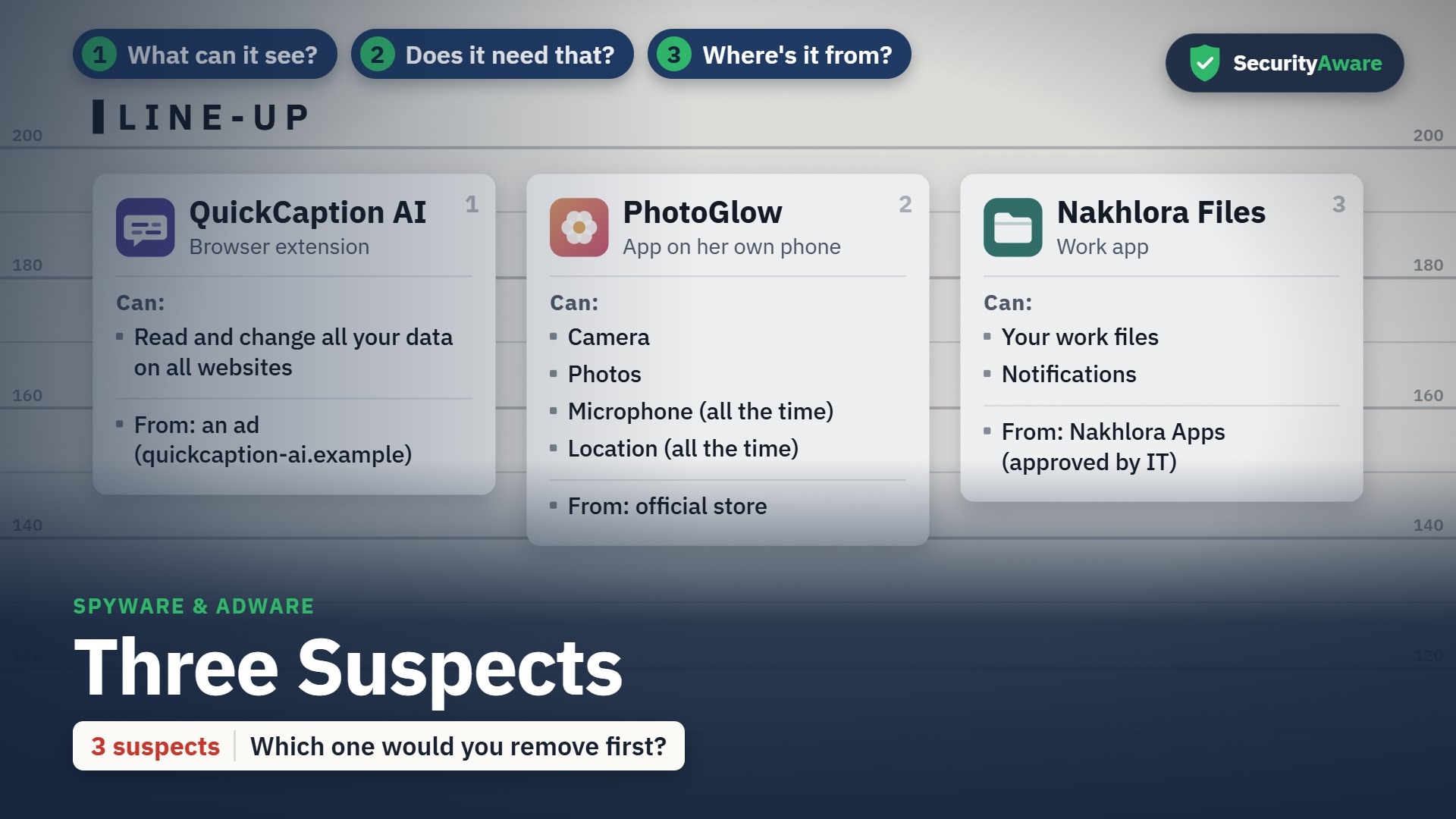
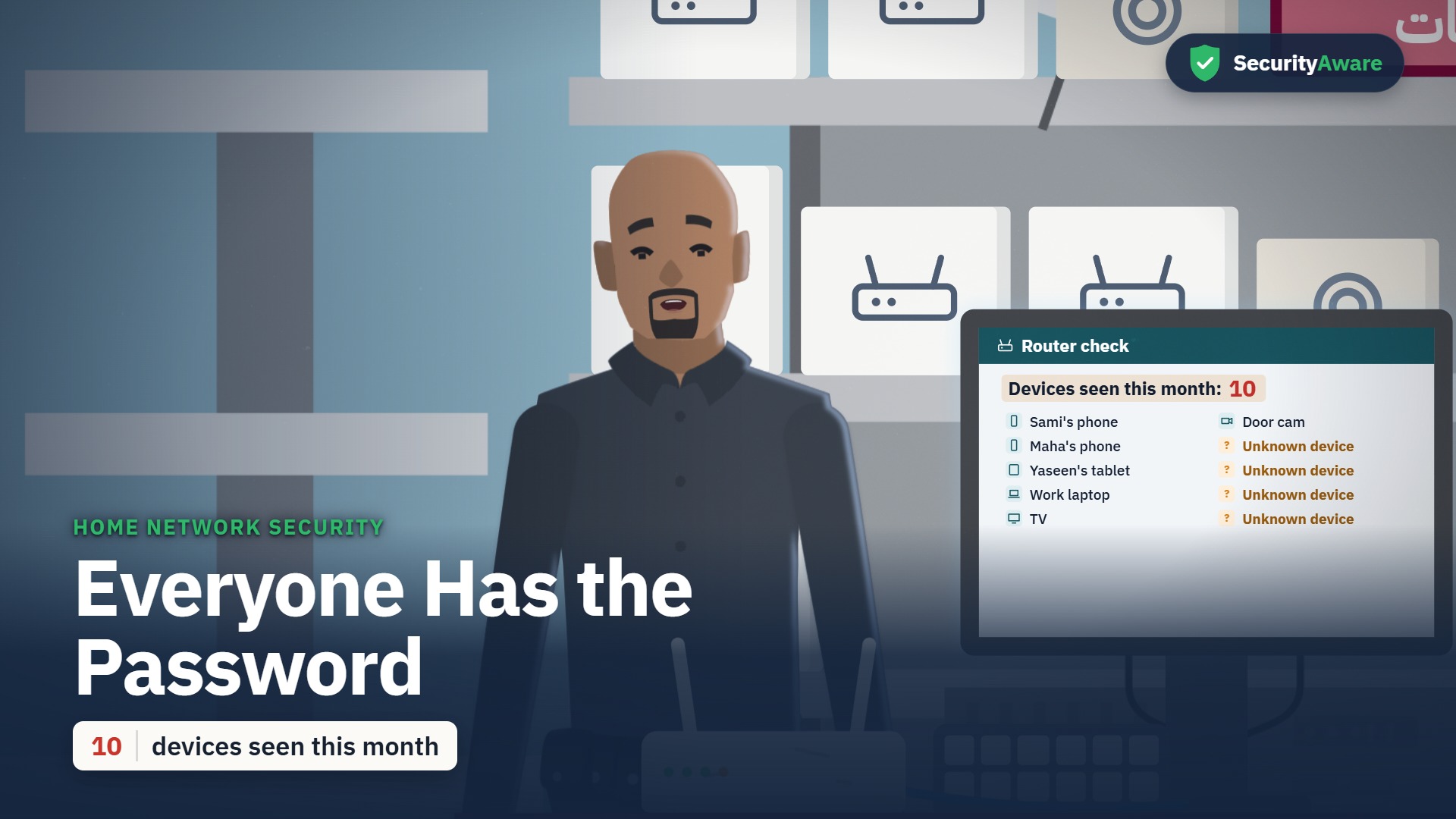
Mobile Device Security training in a 2:27 animated story. It covers Screen lock, updates, app stores, a lost phone; QR-code phishing. In English and Arabic, with captions you can switch on or off, and a scenario quiz at the end.
What your team will learn
-
Report a lost work phone at once to IT Support or your security team, and then change your password.
-
Check the address behind a QR code before opening it, and never sign in from a code on a sticker or poster.
-
Lock your phone with a PIN of six digits or more, hide message previews on the lock screen, and get apps only from the official store or the company app portal.
The story
“What the Finder Saw” is the story at the heart of this course. Emma (account manager) is the lead character; the learner watches the situation unfold, spots the warning signs, and sees the right thing to do. Set in Nakhlora Group, a fictional Gulf company.
Sample quiz question
At 21:03 Emma realises she left her work phone on the metro. What should she do first?
- Wait until morning, in case someone hands it in.
- Report it to IT Support straight away, tonight.
- Ride back to the end of the line to look for it.
- Call her own number and hope the finder answers.
Correct answer: Report it to IT Support straight away, tonight.
Why: The sooner IT knows, the sooner they can lock the phone or wipe it. Waiting or searching first leaves it open for longer.
Full transcript
Transcript of the English video. The Arabic transcript is on the Arabic page.
Key facts
| Length (English) | 2:27 |
|---|---|
| Length (Arabic) | 2:59 |
| Languages | English · العربية |
| Captions | WebVTT |
| Quiz bank | 13 |
| Questions shown | 10 |
| Pass mark | 80 |
| Lead character | Emma — account manager |
| LMS id | 2045 |
Questions people ask
How long is the Mobile Device Security course?
2:27 in English and 2:59 in Arabic.
Is the course available in Arabic?
Yes — a full Arabic version with Arabic voices and a right-to-left Arabic course layer.
Does it include a quiz?
Yes — a bank of 13 scenario questions; each learner gets 10 in random order, pass mark 80.